
This document is intended for RS232 troubleshooting. You may follow these steps to identify the root cause and resolve it.
Step 1: Verify Communication Standard
- Verify that the PLC module utilizes RS-232.
- Confirm that the Roboteq port is RS-232 (not RS-485).
- If there is a mismatch, communication will not succeed.
Step 2: Verify Physical Connections
One of the frequent serial port errors that installers face when linking drives to the control system is improper wiring.
1. Loose Connections
- Problem: The serial cable is not connected properly or the interface is loose.
- Solution: Reconnect the serial cable to guarantee a secure attachment. Additionally, check the plug and pins for any signs of damage. If found to be damaged, replace the serial cable.
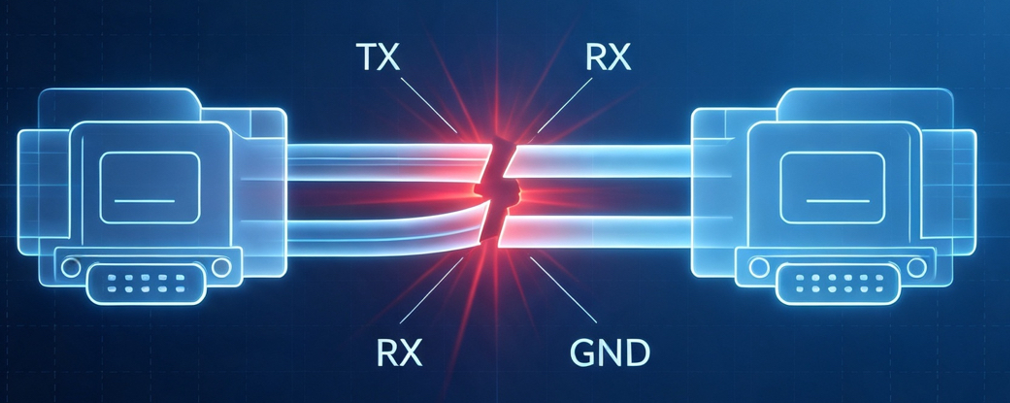
2. Wrong Connection
- Problem: Incorrect connection, without connect GND.
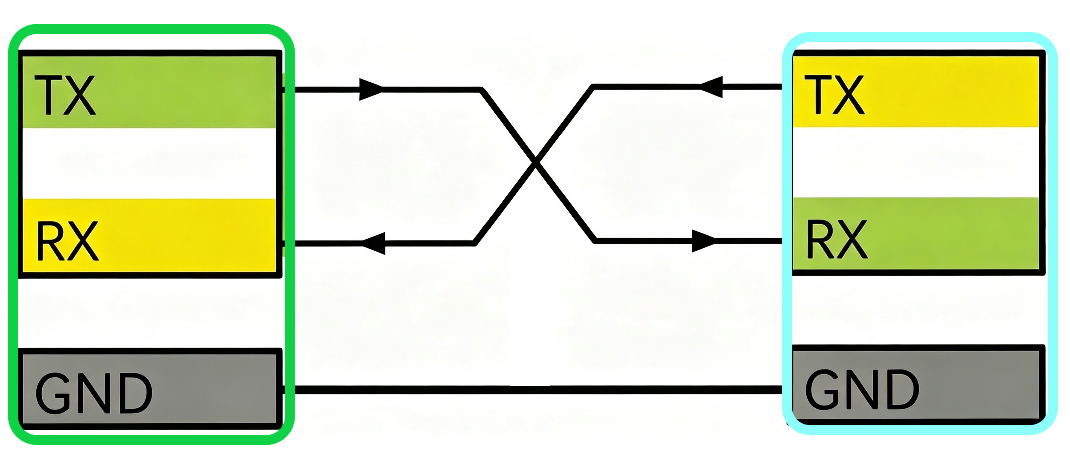
- Solution: Follow the basic following connection, TX to RX and both GND pins connected together.
Drives PLC
3. Long Cables
- Problem: The cable length is excessive, surpassing the operational distance of RS232.
- Solution: The communication distance for RS232 is generally short, normally not exceeding 15 meters (some references suggest it should be limited to 5 meters). For long-distance communication, consider using communication protocols like RS485 or utilizing signal amplifiers, extenders, and other equipment.
Step 3: Check Serial Parameters
The controller operates at a default baud rate of 115200. With firmware version 2.1 and above, the baud rate can be customized, allowing various rates to be chosen using the Roborun+ utility.
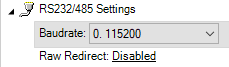
The port that the adapter is connected can be found by opening the device manager

Step 4: Verify That the Serial Adapter is Functional
If a serial to USB adapter is used to establish serial communication, it might be faulty. To confirm its functionality connect together its TX and RX pins for a loopback test. A functional adapter will send back the data transmitted to the PC, while a faulty adapter will either produce no response or deliver corrupted data.
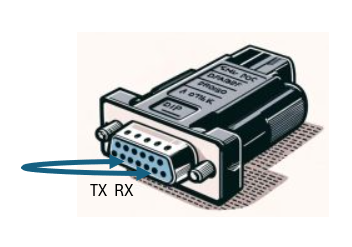
Then send any serial data using a serial terminal and ensure that the request is received through the RX pin.
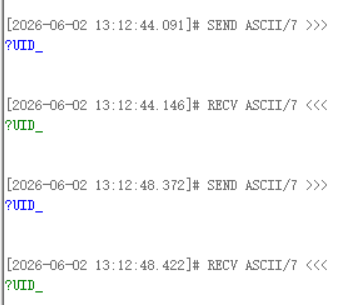
Step 5: Check whether a Connection With the PC Can Be Established
1. Connect to the motor drive and PC using a serial to USB adapter.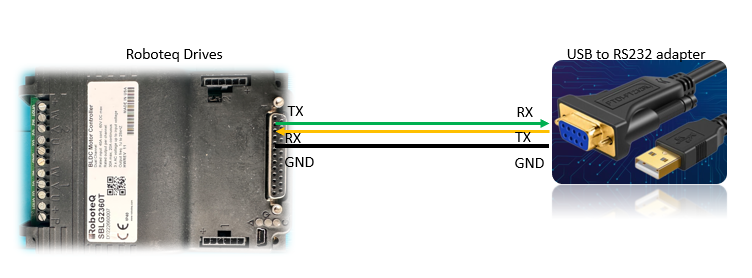
2. Open a serial terminal and issue a query. When using a serial terminal, the commands must be sent followed by an underscore or and end of line charter ("_" or "\r"). When a command is issued Roborun+ utility these characters are automatically being added. So for example, the command to read battery amps should be: ?V_ or ?V \r
3. Open Roborun+, send a test query and and ensure a response is received. For example, send ?V query
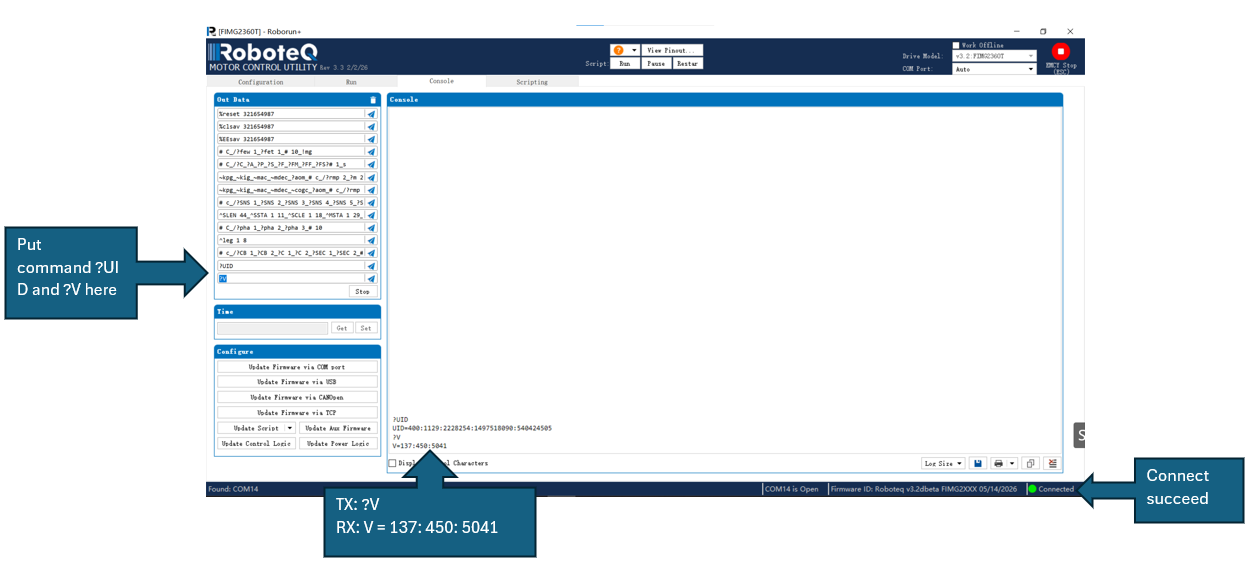
Step 6: Measure the command response time
If the there is a question whether communication delays are related to the motor drive, the below script can be used to test its response time. When the script is executed, the drive will issue a serial command through RS-232, and it will measure the time until it receives a response. To achieve that, the Tx and Rx pin of the drive must be connected together as shown on the below picture. Connect with Roborun+ by using USB.
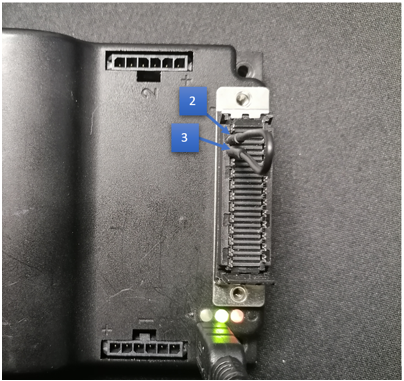
The script follows:
option explicit
#define VAR 10 ' This is the VAR that will be used for the response test. Default value is 10
#define TIMEOUT 1000 'maximum wait time without receiving a response
dim i as integer
i=0
setconfig(_echof,1) ' disable serial echo
wait(1)
setcommand(_var,VAR,0) 'initialize the VAR to 0
wait(1)
setconfig(_SCRO,1) 'change the script print output to RS-232
wait(100)
print("!var ",VAR," 1_") 'change the VAR value to 1
while(getvalue(_VAR,VAR)<>1) 'wait until value has changed
i++
wait(1)
if (i>timeout) 'terminate the script if there is a timeout
setconfig(_SCRO,2)
wait(100)
print("\n timeout error \n")
terminate
end if
end while
setconfig(_SCRO,2) 'change th script output to USB
wait(100)
print("\n Response time: ",i," ms\n")
By the time that you will click on “run” button, the script will issue a command, measure and report the response time. To run the test again, click again on “run” button. The expected response time is between 1 to 2 ms.
Step 7: Verify the PLC Data
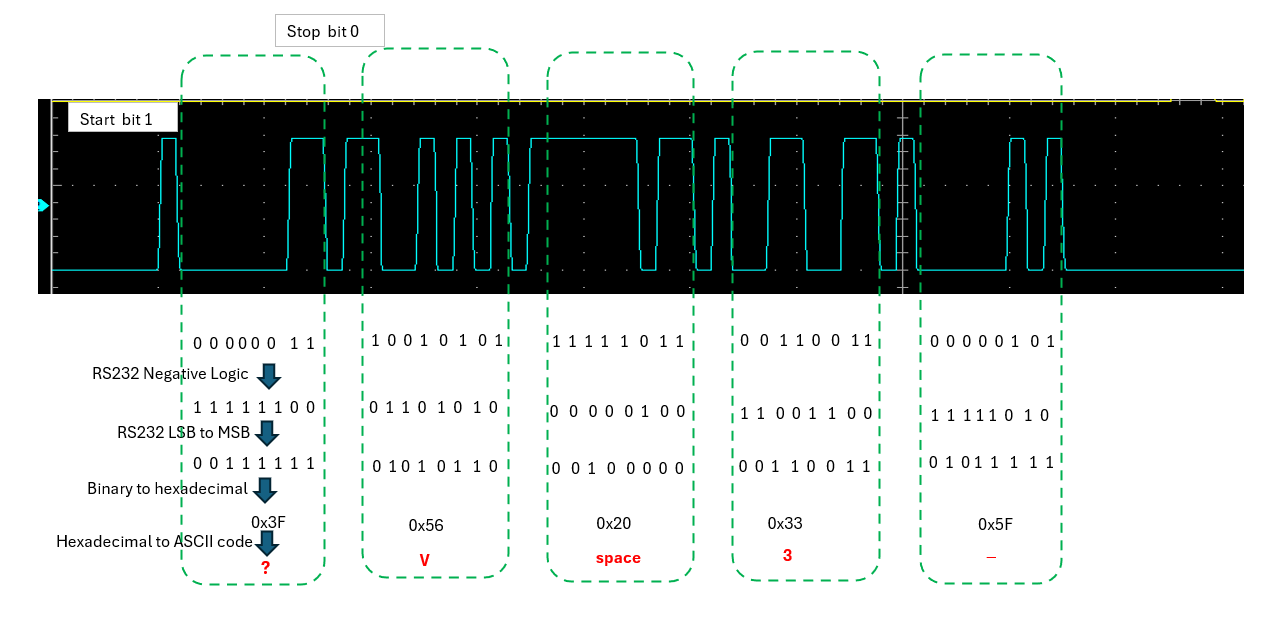
You can use the following methods to determine whether the voltage and logic of the data sent are normal by utilizing an oscilloscope.
To measure individual RS-232 signals, an oscilloscope is necessary, equipped with at least two channels. The maximum frequency on the RS-232 bus varies based on the bit rate utilized. The instrument must sample at a minimum of three times the bus's bit rate, although sampling at ten times higher is preferable on each channel. RS-232 operates with voltages ranging from -12 to +12 V, so the instrument must be capable of measuring voltages within this range.
On the master, set the following:
- 115200 kb/sec
- 8 bits
- None parity
- 1 stop bit
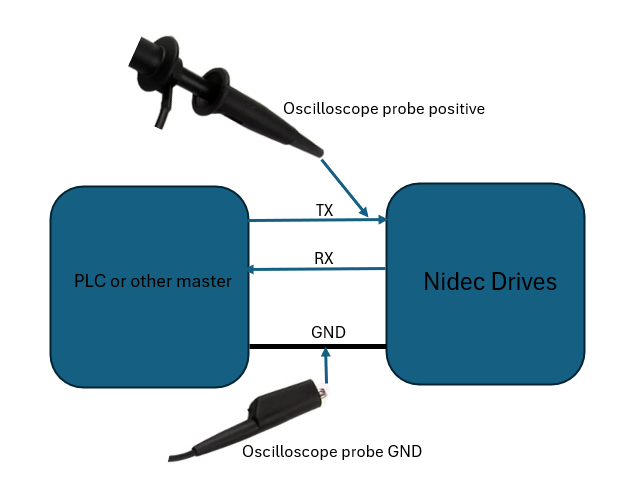
The oscilloscope positive probe should be connected to the TX pin of the master device and the negative probe to GND:
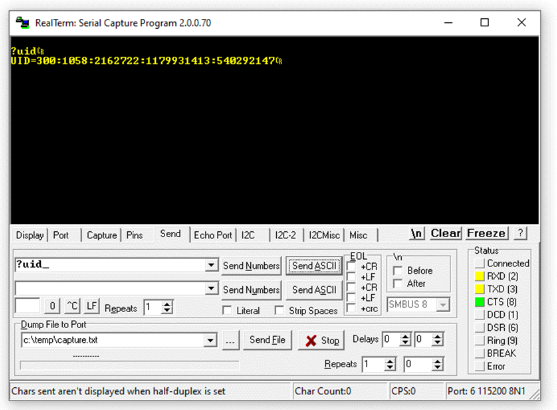
A serial command such as ?UID_ can be issued from the master.
Use Oscilloscope should be triggered and capture the waveform
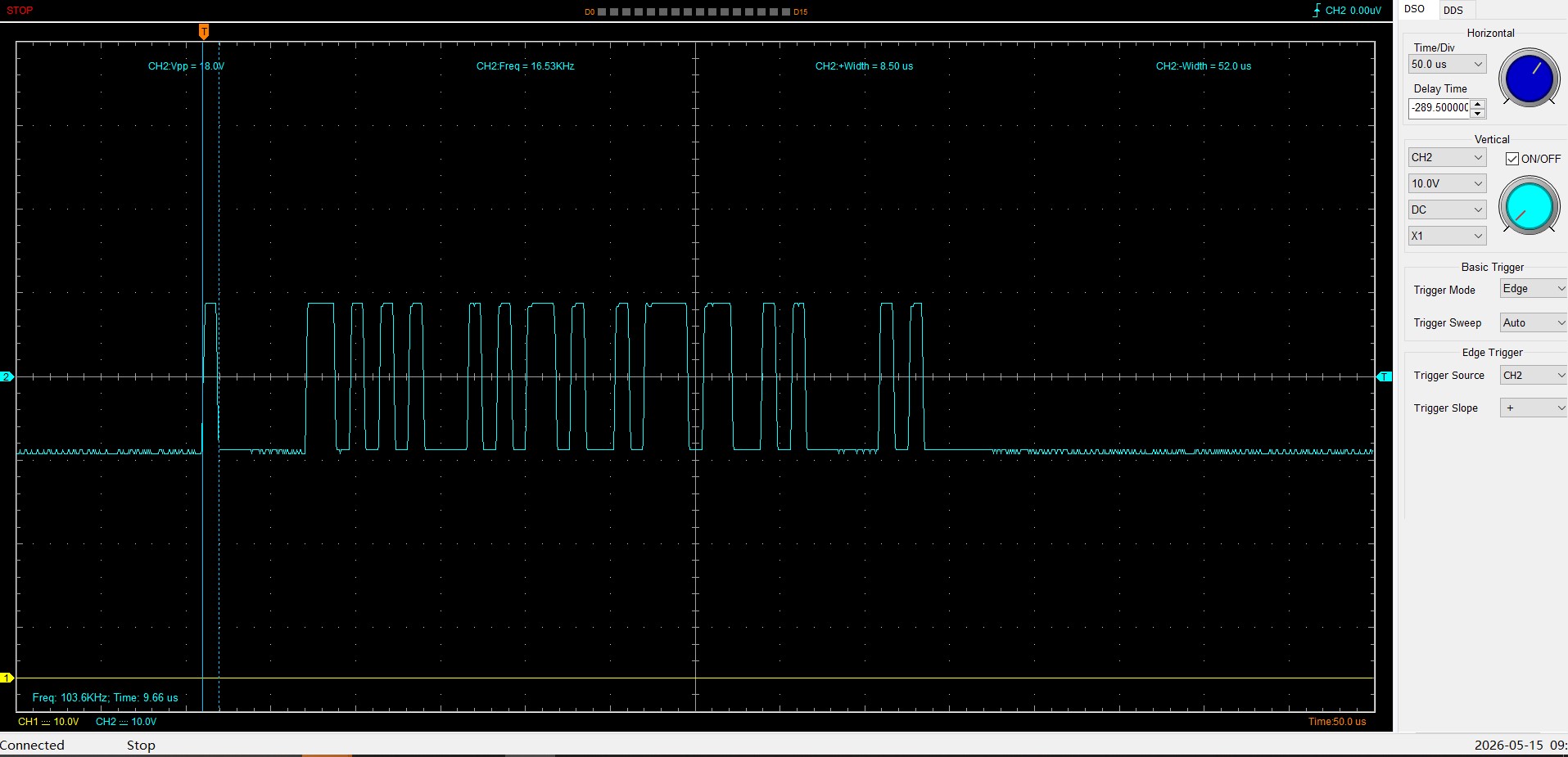
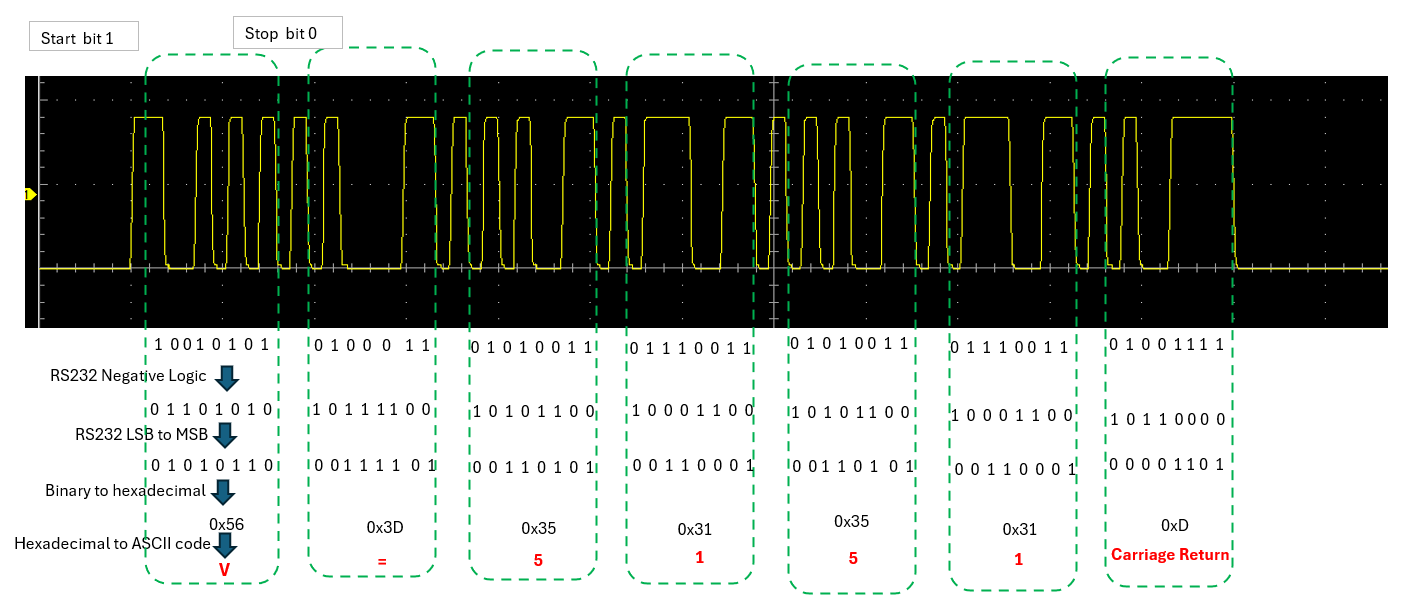
RS-232 employs two signal levels to differentiate between a logical "1" and a logical "0". A logical "1" is indicated by -12V, while a logical "0" is indicated by +12V.
The following examples can be used to ensure that the correct serial data are sent from the master:
?UID_
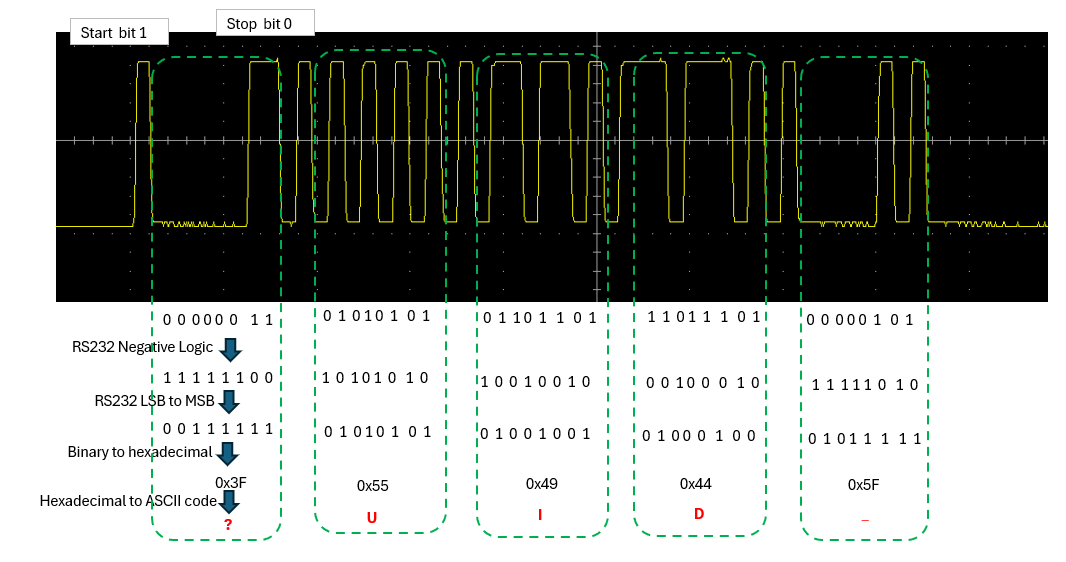
?V 3_
If probing the Rx pin, a valid number of feedback should be received. For example, V=5151.
: